
Most people meet this problem as a pile. A folder of supplier PDFs, a wallet full of till receipts, a client who forwards forty photos at the end of the quarter. Somebody has to read each one and type the vendor, date, tax and total into the books, and that somebody is usually the person with the least time to spare.
This guide covers the whole job, from the moment a document arrives to the moment its numbers show up on a dashboard. It's written for small business owners, freelancers, bookkeepers handling client documents, and developers building expense or accounting features. Each section links to a deeper post if you want the detail.
I build DocuParse API, a receipt and invoice parsing API. While building it, I parsed and hand-checked more than 500 real receipts and invoices, so this guide looks at the job from the extraction side as well as the bookkeeping side. Where another approach fits better than an API, I say so.
What "data entry" actually means here
Receipt and invoice data entry is copying the facts printed on a document into a system that can do something with them: an accounting app like QuickBooks or Xero, a spreadsheet, or your own database.
The facts are nearly always the same handful of fields. Who sold it, when, the document number, how much before tax, how much tax, the total, the currency, and often the individual lines. If you're designing your own table, the invoice and receipt JSON schema lists each field with its type. Once those fields are in a structured form, everything downstream gets easy. You can sum them, filter them, match them to bank transactions and chart them.
The hard part has always been the first step: reading a document that was designed for human eyes and turning it into fields a computer can trust.
Invoices and receipts are different documents
They look alike, and a lot of software treats them the same, but they answer different questions.
An invoice is a request for payment. It usually carries an invoice number, an issue date, a due date, the buyer's name, payment terms and often a list of line items with quantities and unit prices. Invoices tend to be clean PDFs generated by accounting software, though scanned paper invoices are still common with smaller suppliers.
A receipt is proof that a payment happened. It usually shows the merchant, date and time, the items, tax, the total and how it was paid. Receipts are where the mess lives: thermal paper that fades, phone photos taken at an angle, crumpled corners, and a few lines that look like a total but aren't (cash tendered, change due, a tip line).
| Invoice | Receipt | |
|---|---|---|
| Purpose | Ask for payment | Prove payment |
| Typical identifier | Invoice number | Receipt or transaction number (often missing) |
| Dates | Issue date and due date | Transaction date |
| Payment info | Terms and bank details | Payment method (card, cash) |
| Usual format | PDF from software | Photo or scan of thermal paper |
| Common traps | Multi-page line items, credit notes | Tendered vs total, faded print, tips |
If you are building a system, store which type each document is. It changes which fields you expect to be empty and which checks make sense. Bank statements and tax forms are a different job again; what DocuParse API parses lists which documents it handles and which it doesn't.
Who ends up doing this work
The job looks different depending on where you sit:
- A freelancer or sole trader with a few dozen receipts a month mostly needs them categorized and kept for tax time.
- A small business owner wants supplier bills in the accounting system and a clear view of where money goes each month.
- A bookkeeper or accountant receives documents from many clients, in every format, often in batches right before a deadline.
- An accounts payable clerk in a growing company handles a steady stream of supplier invoices that need approval and payment on time.
- A developer is building an expense app, a bookkeeping product or an internal finance tool, and needs the extraction step to work for documents they have never seen.
The fields are the same for all of them. What changes is volume, how much checking each document needs, and where the data has to end up. There are separate pages for accounts payable automation and bookkeeping automation if you want the specifics for your role.
Why typing it in by hand stops working
Manual entry works fine at low volume. It stops working for three reasons.
The first is time, and you can estimate it yourself. Time how long it takes you to enter one document properly, including opening it, finding the fields and filing it. Multiply by your monthly volume. At two minutes a document, 300 documents a month is ten hours of typing. Bookkeepers with several clients multiply that again.
The second is errors that look correct. Transposed digits (4,151 typed as 4,511), a missed decimal, the wrong date format (03/04 read as March or April) and the subtotal typed into the total box all produce numbers that sit in the books quietly until a reconciliation fails.
The third is delay. When entry is a chore, it gets batched to the end of the month or quarter. Until then, nobody knows what was spent, and late bills get paid late. If supplier invoices are your main load, automated invoice processing goes deeper into the accounts payable side, including approvals.
The four ways to get the data out
1. Manual entry
You read the document and type. It costs nothing to set up and you understand every number. It doesn't scale and it's where most transposition errors come from. It still makes sense for a handful of documents a month.
2. Template-based OCR
OCR (optical character recognition) turns the image into text. Template tools then pull fields from fixed positions or patterns you define for each layout: "the total is to the right of the word TOTAL on this vendor's invoice."
This works well when you receive the same few layouts over and over. It breaks when a vendor redesigns their invoice or a new supplier appears, because every new layout needs a new template. If you want the longer comparison, see OCR vs AI for invoice parsing.
3. Asking a general AI model
You can send an image to a general-purpose AI model that reads images and ask it for JSON. On clean documents, it often gets the main fields right on the first try, which makes it a good option for prototypes and low volumes.
The problems show up later. Output formats drift between runs, amounts come back as "$1,320.00" one time and 1320 the next, and when a field is unreadable a model may produce a plausible guess instead of an empty value. You end up writing the normalization and checking layer yourself. The post on using a general AI model to parse invoices goes through when that trade is worth it.
4. A document parsing API
A parsing API is built for this one job. You send a PDF or photo and get the same set of named fields back for every document, with missing values as null, dates in one format and amounts you can do math on.
DocuParse API is one of these. It reads each field with rules, reconciles the numbers (line items against the subtotal, subtotal plus tax against the total), and then an AI model reviews every document and corrects the fields it finds wrong. On the 500+ hand-checked receipts and invoices it is tested on, that comes to 97% field-level accuracy for merchant, number, date, tax and total. The invoice parser API and receipt OCR API pages cover each document type in more detail.
Here is what the full flow looks like in Python: submit the file, then fetch the finished result.
The result comes back in a fixed shape:
On the Starter and Pro plans, a webhook can deliver the result to your server instead of you fetching it. If you don't write code, the same two steps work as HTTP modules in n8n, Make or Zapier.
Which one fits
| Your situation | What usually fits |
|---|---|
| Under 20 documents a month, no growth expected | Manual entry, or a free API tier |
| Same few vendors, fixed layouts | Template OCR works |
| Prototype or internal tool | A general AI model, with your own checks |
| Mixed vendors, photos and PDFs, growing volume | A parsing API |
| Building a product other people rely on | A parsing API, plus validation and a review queue |
| Already deep in AWS or Google Cloud at high volume | Their document services may cost less at the margin |
Pricing models differ more than headline prices. Some services bill per page, so a 10-page invoice counts as 10 units. DocuParse API counts any document of up to 10 pages as one document, and 11 to 20 pages as two. For single-page documents at low volume, a per-page service such as AWS Textract can cost less. The pricing comparison lays out the arithmetic across vendors.
Check the numbers before you trust them
Whatever does the extraction, some documents will come back wrong. A faded receipt, a total that sits next to "cash tendered", a tax line the reader took as the subtotal. The risky errors are the ones that look plausible.
A few cheap checks catch most of them:
- Subtotal plus tax (minus discount, plus shipping) should equal the total, within a cent or two.
- Line items should add up to the subtotal, or to the total on tax-inclusive receipts.
- The date should not be in the future, and a due date should not come before the issue date.
- A total far above what you usually pay that vendor deserves a second look.
Anything that fails goes to a short review queue instead of straight into the books. DocuParse API runs the first two of these checks on every document and returns needs_review: true when something still doesn't line up, which gives you a ready-made filter. The full list of checks, with code, is in why AI receipt scanners get totals confidently wrong.
Stop the same invoice from being entered twice
Duplicates are the other expensive mistake. A vendor emails the invoice and then sends a reminder with the same PDF. A client forwards a receipt photo and the email receipt for the same purchase. Two people on a team both upload it.
Bookkeepers who get a quarter's documents at once can upload them as one batch in the DocuParse API dashboard. Each file is checked on its own, so one unreadable photo doesn't hold up the rest, and on Starter and Pro a batch.completed webhook tells your system when the batch is done.
The fix for duplicates is a check before anything is saved: an identical-file check, an exact match on vendor plus document number, and a looser match on vendor plus amount plus nearby date. How to build each one, and how to avoid flagging legitimate repeat charges like subscriptions, is covered in how to catch duplicate invoices automatically.
Keep the original, not just the data
Extracted data is what you report on. The document is what an auditor asks for. In the US, the IRS accepts electronic copies of records if they are complete, legible and retrievable, and it sets retention periods that start at three years for most situations. Keep the file alongside the extracted row and link the two.
The details, including what a receipt needs to show and when the retention period is longer, are in digital receipts and the IRS.
Turn the data into a spend dashboard
Once every document becomes a clean row, the reporting comes almost for free. The questions people actually ask are simple: what did we spend this month, on what, with whom, and how much tax did we pay?
You have two routes:
- Use the built-in dashboard. Every document you process with DocuParse API shows up in your dashboard with total spend, document count, total tax and average value, filterable by date range, document type and currency. You can export the data as CSV or JSON, or as a formatted PDF report.
- Build your own. Send the rows to Google Sheets and put Looker Studio on top, or feed your own database and charting tool. You decide the categories, the views and who sees them. If you're feeding a finance dashboard from code, see receipt and invoice data for finance dashboards.
The step-by-step version, including an Apps Script that processes a Google Drive folder of receipts and a category lookup table, is in how to build a spend dashboard from receipts and invoices.
One warning that applies to every route: don't add up totals in different currencies. Filter by currency, or convert at a recorded rate before you sum. In the DocuParse API dashboard, pick a currency in the currency filter before you read Total Spend, because with All currencies selected it adds every currency together.
What still needs a person
Automation removes the typing. Some decisions stay human:
- Choosing an expense category when a vendor sells many kinds of things.
- Approving a bill before it is paid.
- Reviewing the documents that fail a check.
- Deciding what a vague receipt was for, which tax rules care about.
A good setup sends only those cases to a person and lets the rest flow through.
A setup you can copy
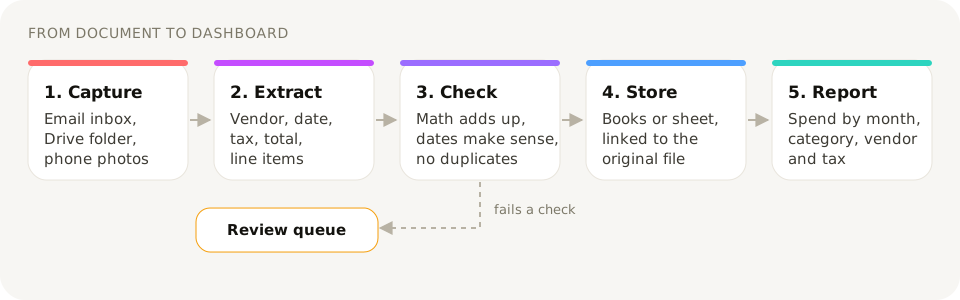
If you want a starting point that fits most small teams:
- Pick one place where documents arrive: an email address like
invoices@yourcompany.com, or a shared Drive folder. - Send each new file to a parsing API and store the result next to a link to the original.
- Run the arithmetic and duplicate checks. Route failures to a review list.
- Push clean rows to your accounting app (QuickBooks, Xero) or a spreadsheet.
- Look at the dashboard once a week and clear the review list.
To try the extraction on your own documents, Sign up free: 20 documents a month, with full API access and no credit card. Webhooks are on Starter and Pro. Or drop a file into the live demo and look at the JSON first.